
You have a gift list, a travel booking and a few costs you have already paid. The total is useful, but it leaves another question: will your holiday money be available when the next payment is due?
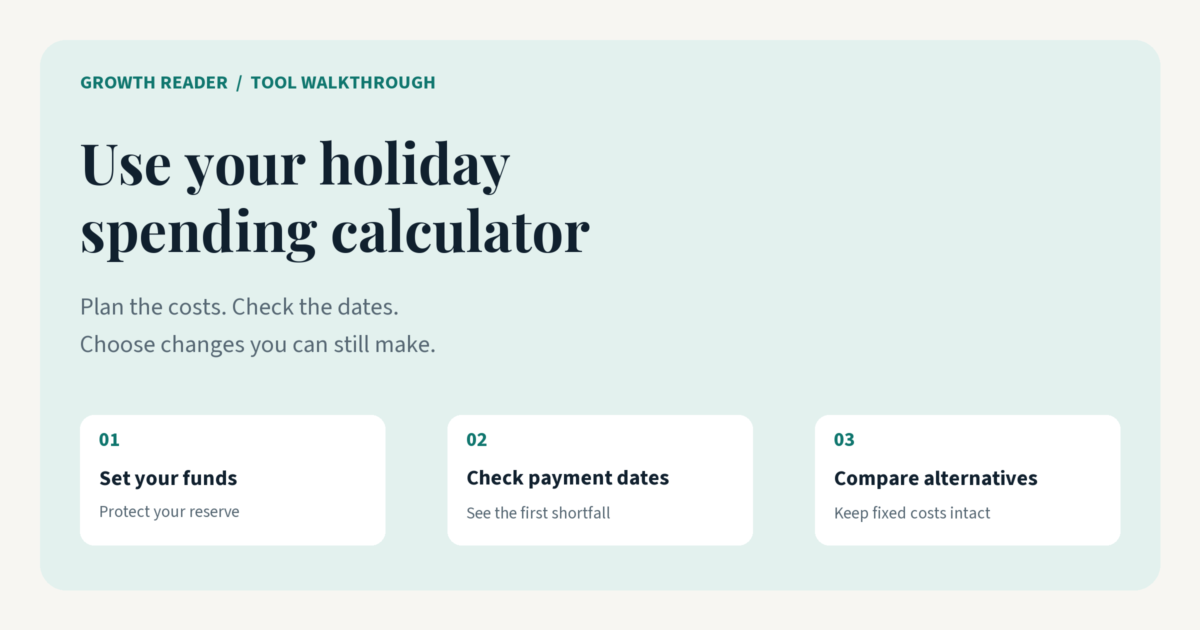
The free Holiday Spending Calculator checks both the full cost of your season and the timing of the payments still ahead. You can compare smaller plans, keep purchases separate from estimates, and save a copy to update later. Here is how to use it with your own numbers.

Start with the worked example
Open the tool and choose “Try a worked example” before entering your own plan. It shows how a season can finish close to budget while running short earlier. When you are ready, choose “Start fresh.” Save an existing plan before replacing it.
1. Set a realistic funding boundary
Choose one currency for the whole plan. The currency selector changes the labels; it does not convert amounts. Set the review date to the day your figures describe, then set a holiday payment deadline that includes your final card bill or installment. The deadline may fall after the holiday itself.
For “Holiday cash available now,” enter money remaining for the season after essentials and payments already made. Enter the part of that amount you want to keep untouched as your “Protected reserve.” If you have 500 available and want to protect 100, the tool starts with 400 to cover future costs.
Add extra funds only if you reasonably expect them, with their arrival date. For recurring savings, enter the amount you will set aside, the first transfer date and the interval. “Every 30 days” means a fixed 30-day interval. Check that the dates match when you can actually move the money.
2. Add individual costs and choose their status
Use “+ Add cost” for each gift, trip, meal or extra. Give it a recognizable name and a category. Include delivery, tax, tips and fees in the full amount. Itemizing costs makes the alternative plan useful: you can change one gift without cutting every gift by the same amount.
- Planned: a cost you have not bought or agreed yet. Enter its full estimate.
- Committed: an agreed or booked cost. Enter its full estimate; the tool keeps it fixed when comparing smaller plans.
- Purchased: an actual purchase. Enter its full net cost and the net amount paid so far. The unpaid remainder belongs in future payments.
Illustrative example: a purchase costs 110 and you have paid 40. Its remaining payment is 70. Enter the cost and paid amount on the same item. Your current holiday cash should already reflect the 40 you paid, so the calculator does not subtract that payment again.
After a refund or cancellation, update both net cost and net paid as appropriate. For installments due on different dates, split the outstanding cost into separately named items. Each item should contain only its own portion; repeating the full purchase on every installment would overstate the season.
3. Enter the dates you will actually pay
A payment date can matter as much as its amount. Enter the due date for each future cost, including unpaid purchases. A missing date uses your holiday payment deadline. An overdue amount is treated as due on the review date, so it cannot quietly disappear from the timeline.
Choose “Check my holiday plan” to calculate the results. The full-season forecast combines net purchased costs with planned and committed estimates. “Already paid” is context. “Payments still ahead” is the amount you still need to cover. Final headroom shows what remains after the protected reserve and those future payments.
Read “Is the money there when you need it?” next. Its table follows dated funds and payments, showing cash remaining after each day. A negative balance identifies a timing gap even if the final balance is positive. Funds arriving on a due date are assumed available before that day’s payments; move a transfer later if that is not realistic.
4. Understand the two savings figures
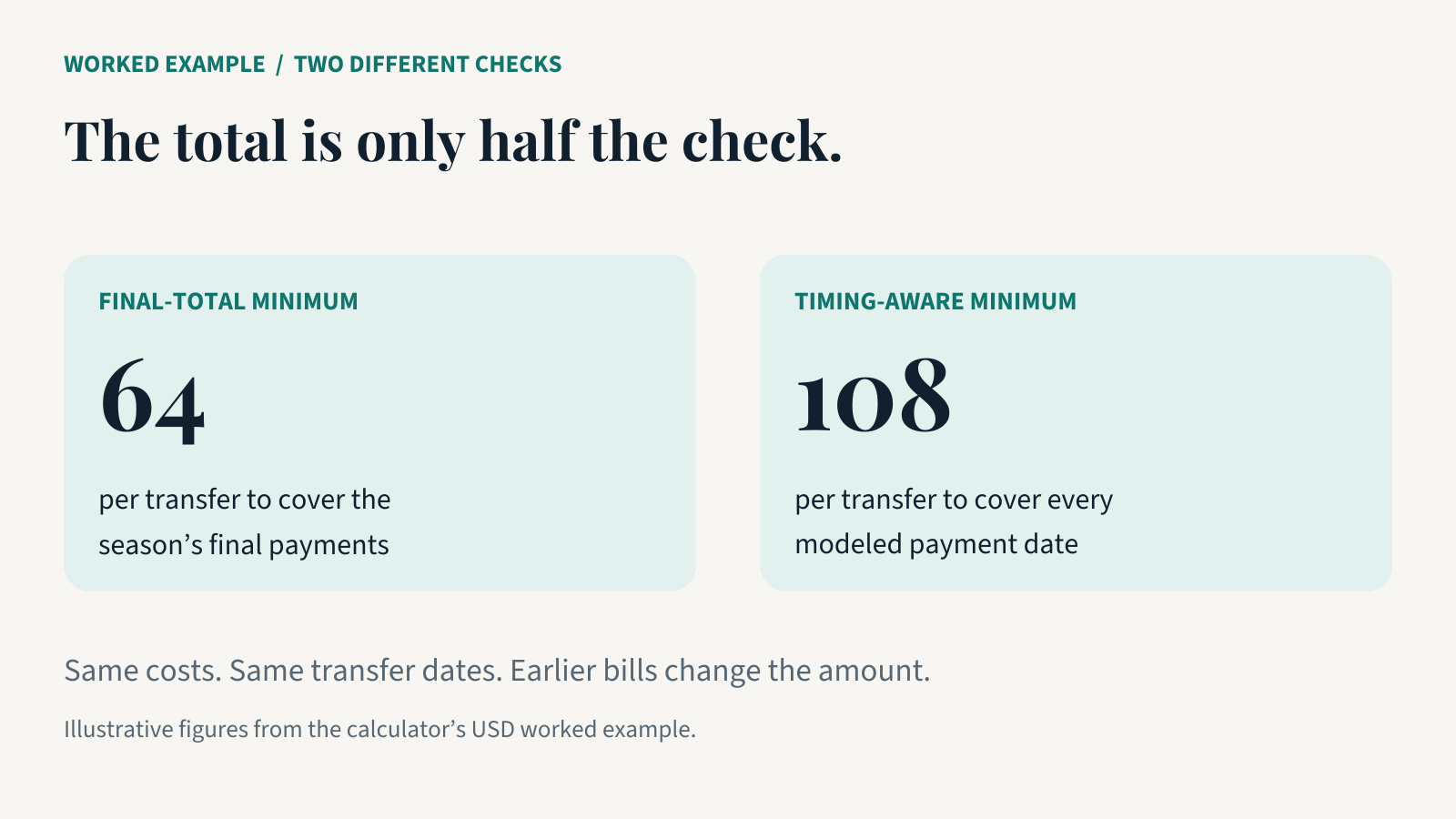
The savings section separates the transfer needed to cover the final total from the transfer needed to cover the payment timeline. These figures answer different questions. A small regular transfer can cover the season eventually while leaving an earlier bill without enough cash.
In the tool’s worked example, current cash is 500, the protected reserve is 100, and extra funds of 150 arrive later. Ten regular transfers of 60 bring available funding to 1,150. Future payments are 1,190, so the plan ends 40 short.
The final-total minimum is 64 per transfer. The timing-aware minimum is 108 per transfer because some payments come earlier. The entered plan also reaches a peak timing shortfall of 240. The example dates move with the review date; the difference between the two savings checks is what to watch.
Read the first shortfall before changing the transfer
If a payment comes before your first transfer, a larger recurring amount may arrive too late. Check which cost is due first, then consider an affordable change to that cost or its payment date. A suggested transfer is a planning figure, not money already available.
5. Compare changes you can still make
Mark a planned item “Can reduce” only when you are willing to change it. Enter a “Cheaper alternative” for a specific replacement; zero means skip it. Protect priority items by leaving “Can reduce” unchecked.
The comparison shows your current plan, a percentage reduction of flexible planned costs, and your entered alternatives. Purchased and committed costs stay fixed. This lets you try a smaller gathering or a less expensive gift without pretending a booked payment has disappeared.
Check both final headroom and payment timing in every version. A cheaper plan can fix the total while leaving an early shortage. In the worked example, the alternatives bring the forecast down to 1,120 and final headroom up to 170, but a timing gap still remains. Use “Your next decisions” to find the specific costs behind possible savings, then edit your actual plan when you decide.
6. Save your plan and keep it current
“Save my plan” creates a JSON file containing your entries. “Open saved plan” restores that file so you can revise it later. The calculator does not automatically save your session. Save before refreshing, closing the page, loading an example or starting fresh, and keep exported files somewhere private.
Use “Print / save PDF” for a readable summary to review alongside receipts or your paper planner. The optional offline download contains a browser version of the tool; unzip it and open the HTML file with JavaScript enabled. The online calculator works without entering an email.
Return when a price changes, a purchase is made or a payment clears. Update the item’s status, net cost, paid amount and date, then recalculate. Your entries are processed in the browser rather than sent as a budget submission. The output remains an estimate based on the figures and dates you supply.
Open the Holiday Spending Calculator, load the example, and check one payment date before building your own plan.